How to Set Up a PTO Tracker in Google Sheets (Free 2026 Template)
Build a PTO tracker in Google Sheets in five steps — or copy our free 2026 template with automatic colors, holiday shading and self-computing leave balances. Plus: when a spreadsheet stops being enough.
A spreadsheet is how almost every small team starts tracking time off — and for a while, it genuinely works. This guide shows you how to build a PTO tracker in Google Sheets that's a cut above the usual color-in-the-cells grid: one that computes every balance by itself. You can follow the five steps below, or skip them entirely and copy our free 2026 template with everything already set up.
To track PTO in Google Sheets: create a tab per month with a row per person and a column per day, define a letter code for each leave type (V, S, H…), and type the code on approved days. Conditional formatting turns codes into colors, and
COUNTIFformulas turn them into live balances — no manual counting.
Get the free 2026 template
Open the Bueggio HR PTO Tracker 2026, then use File → Make a copy to get your own editable version. No email, no sign-up. If your company lives in Excel instead, File → Download → Microsoft Excel gives you the same file with the formulas and formatting intact.
What's inside:
- Twelve month tabs for 2026 — a row per person, a column per day, weekends already shaded.
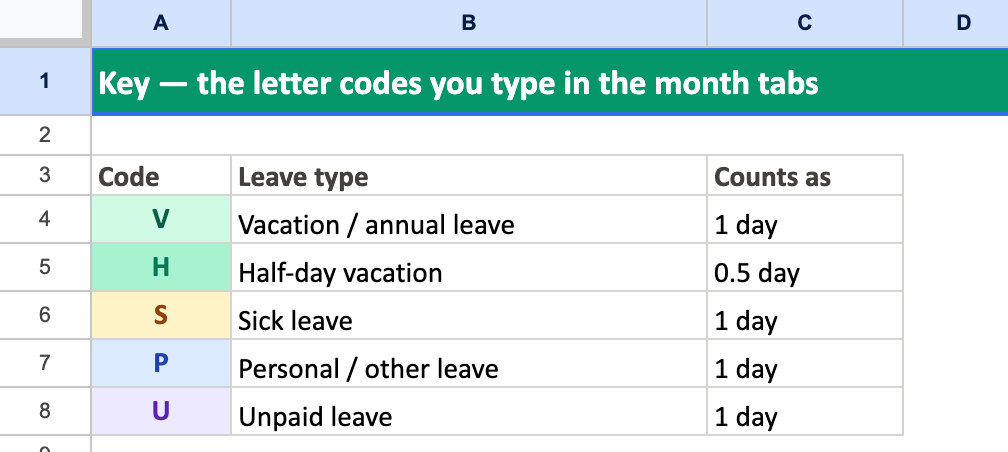
- A Key tab with five ready-made leave codes: V vacation, H half day, S sick, P personal, U unpaid.
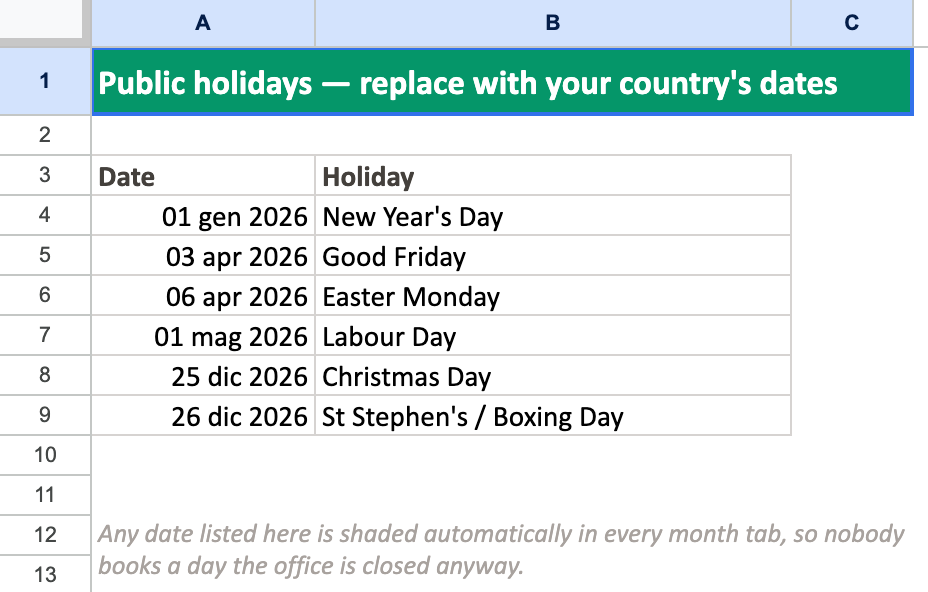
- A Holidays tab — list your country's public holidays once, and the matching columns shade themselves in every month.
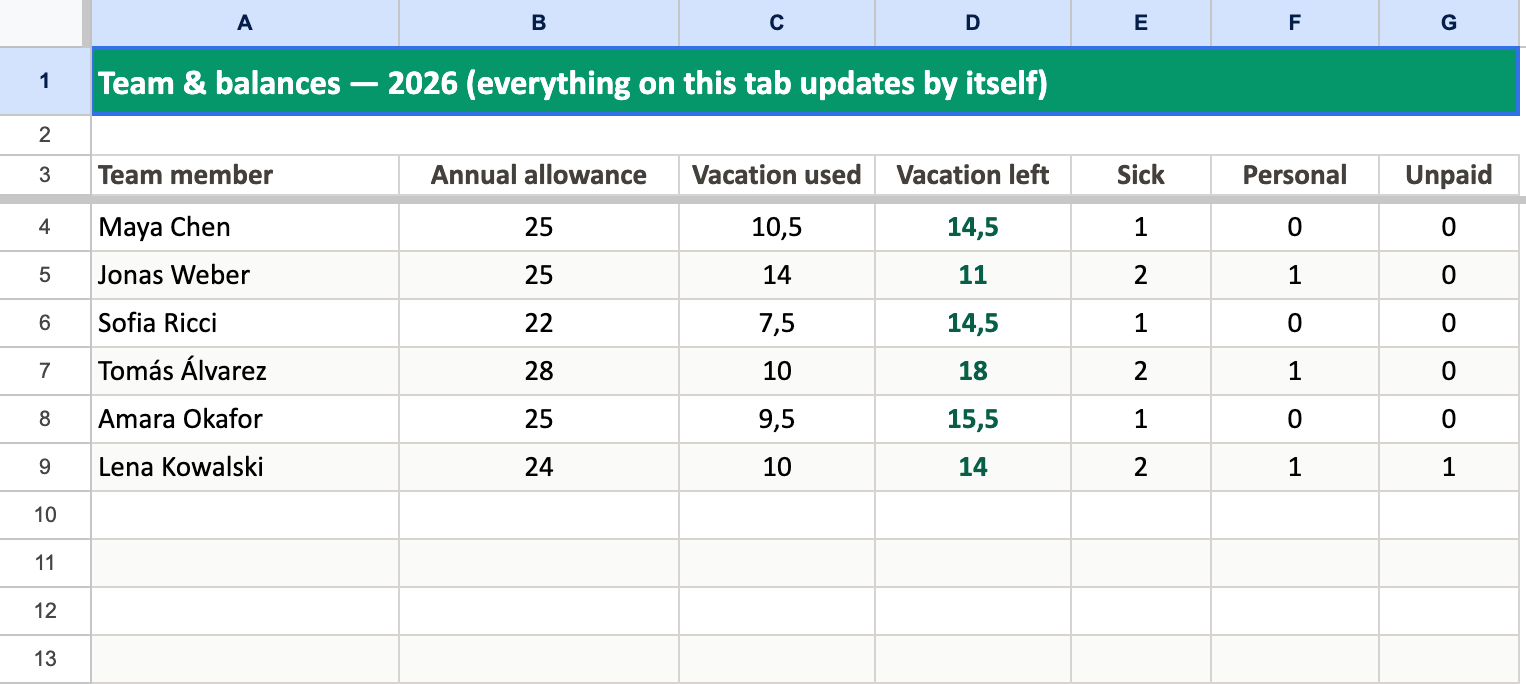
- A Balances tab that counts every code across the year and shows allowance, used and remaining per person — automatically, half days included.
The rest of this article walks through how it's built, so you can adapt it — or rebuild it your way.
How to set up a PTO tracker in Google Sheets, step by step
1. Create a grid for each month
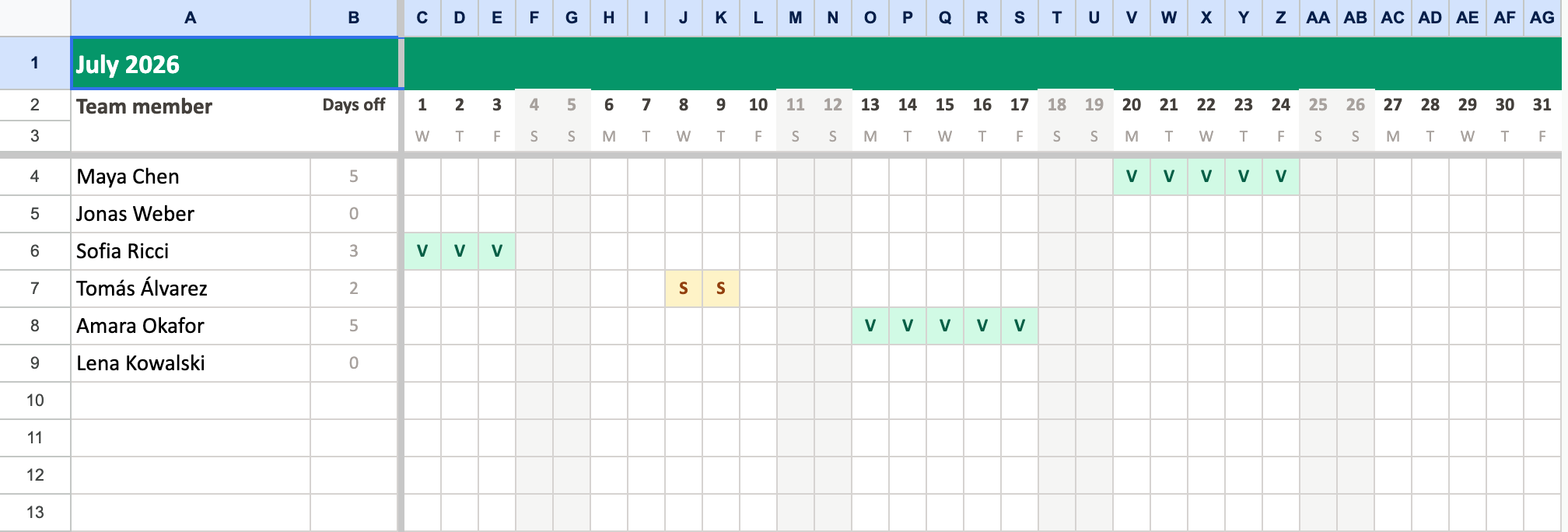
One tab per month keeps the sheet readable on a laptop and printable when someone insists. Put your people in column A, the days of the month across the top (with a small weekday initial under each number), and freeze both so they stay visible while you scroll. Shade the weekend columns so nobody books a Saturday by mistake.
2. Add your team — once
Resist typing names into twelve tabs. Type them once, in a single Balances tab, and have every month pull them with a formula like =Balances!A4. Rename someone (or hire) and all twelve months update themselves.
3. Use letter codes, not just colors
Most spreadsheet trackers stop at coloring cells: green for vacation, yellow for sick. It looks great and computes nothing — Google Sheets formulas can't count colors, so every total ends up counted by eye. Type a short letter code instead and let conditional formatting apply the color for you: select the grid, add a rule per code ("text is exactly V" → green fill), and you get the same visual chart plus data that formulas can work with. Half days become possible too — the template counts every H as 0.5.
4. Mark public holidays in one place
Hardcoding holiday colors into twelve tabs is exactly the kind of chore that makes spreadsheets rot. Keep a Holidays tab with one date per row and shade the grids from it with a single conditional-formatting formula:
=COUNTIF(INDIRECT("Holidays!$A$2:$A$63"), DATE(2026, 1, C$2)) > 0
Change the list, and every month tab re-shades itself. The template ships with a handful of common dates — swap in your country's calendar.
5. Let formulas keep the balances
This is the payoff for step 3. Count a person's vacation days across the year by adding a COUNTIF per month:
=COUNTIF(Jan!$C4:$AG4,"V") + COUNTIF(Feb!$C4:$AG4,"V") + … + 0.5 * COUNTIF(Jan!$C4:$AG4,"H") + …
Put the annual allowance next to it, subtract, and you have a live "vacation left" figure nobody has to maintain. Do the same for sick, personal and unpaid days and the Balances tab becomes the one screen that answers most questions.
Pros and cons of tracking PTO in a spreadsheet
We built the template, so we clearly think it's useful — but it's worth being honest about both columns of this ledger.
✅ It's free
No subscription, no per-seat pricing, no procurement conversation. For a five-person team watching every euro, that argument is hard to beat.
✅ Everyone already knows how to use it
There is no onboarding for a spreadsheet. It opens in the browser, works on any platform, and whoever you hire next has used one before.
✅ It bends to your rules
Odd leave types, a four-day week, a notes column — nothing stops you. A spreadsheet never tells you a field is unsupported.
❌ Every request is manual work for someone
The sheet doesn't receive requests, doesn't ask a manager, and doesn't write anything down by itself. A human — usually the same overloaded human — turns every Slack message and hallway ask into colored cells. That's fine at 5 people and a real job at 25.
❌ Errors are silent
A code on the wrong row, a formula range that stopped one column short, a deleted holiday: nothing turns red. Spreadsheet mistakes surface weeks later, usually as a balance dispute between an employee and payroll.
❌ Everyone sees everything
One shared sheet means the whole company can see who was sick, when, and — if there's a notes column — why. Health-related absence data deserves better than everyone-with-the-link visibility, and under the GDPR it may legally require it: sickness records are special-category data. A spreadsheet has no concept of "managers only".
❌ It doesn't scale past a certain headcount
More people means more tabs of scrolling, more concurrent editors, more places for the formulas to drift. Somewhere between ten and twenty people, the time spent babysitting the sheet quietly exceeds the cost of a tool built for the job.
When your team outgrows the spreadsheet
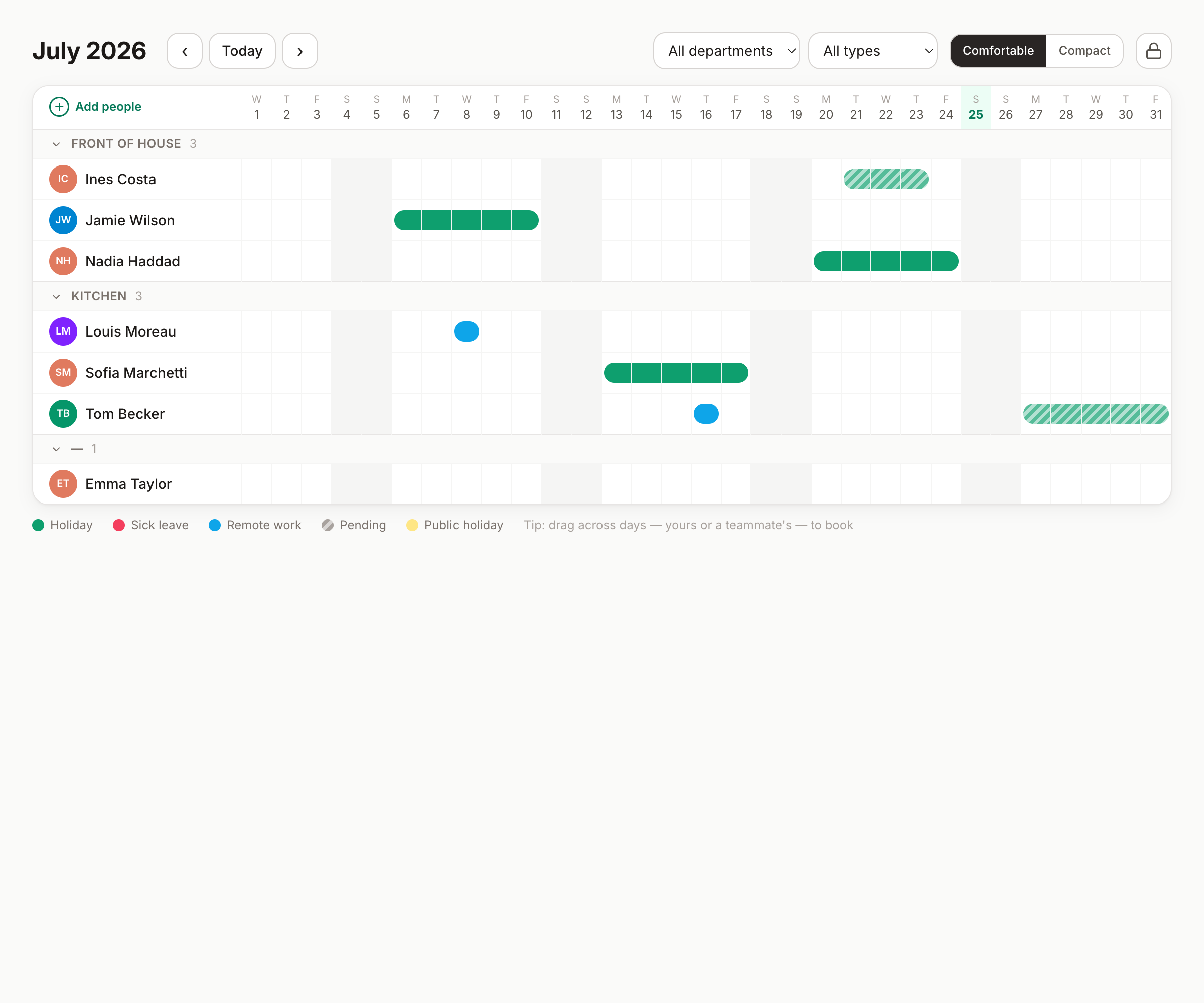
Everything the template automates with formulas, leave tracking software automates end to end. In Bueggio HR the flow is: an employee books time off from their phone, the manager gets one notification and approves with one click — from the email itself, from Slack or Microsoft Teams — and the wall chart, the balances and everyone's calendars update on their own. Nobody colors a cell.
The parts a spreadsheet can't reach are covered too:
- Public holidays for 45+ countries built in — including regional calendars — with per-person holiday countries for international teams.
- Country leave rules where they're hardest: Italian ROL and ex-festività hours, French RTT and jours ouvrés counting, Spanish convenio extras are computed, not approximated.
- Privacy by design: employees see the chart, managers see their team's requests, and sickness details stay off the wall chart. EU-hosted and GDPR-first, with export and erasure built in.
- An audit trail — who requested, who approved, when, and why something was declined.
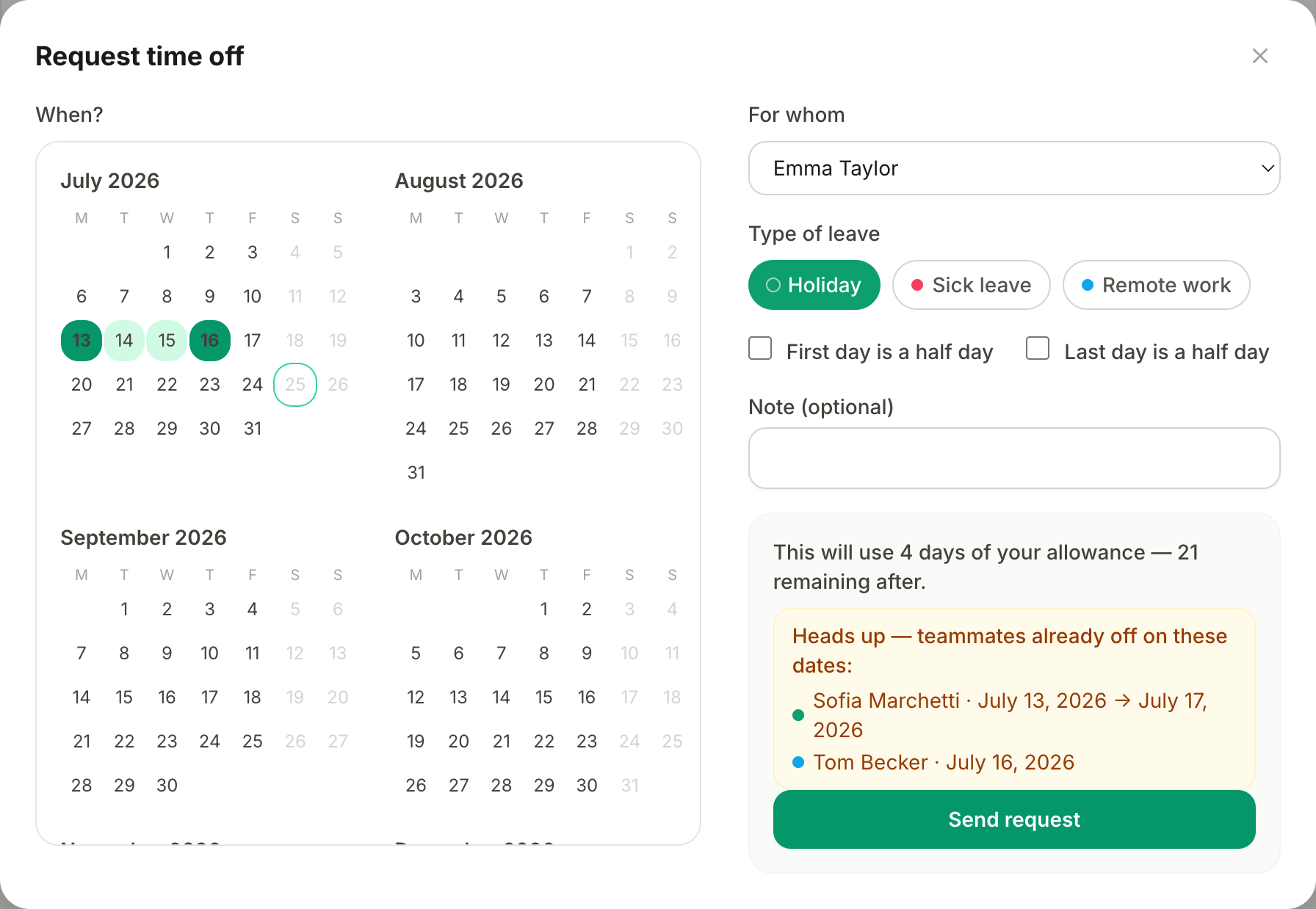
Pricing is deliberately spreadsheet-friendly: €1.30 per user per month, one plan, everything included — and the first month is free, no card required. If the sheet has started eating someone's Friday afternoons, that's the comparison to run.
Frequently asked questions
Is Google Sheets good for tracking PTO?
For a small team, yes: it's free, everyone can open it, and a well-built sheet with one tab per month, letter codes and COUNTIF formulas answers who's off and how many days everyone has left. The trade-offs are manual data entry for every request, no approval flow, and no privacy — anyone who can see the chart sees everyone's sick days. Those limits grow with headcount.
How do I count someone's PTO days automatically in Google Sheets?
Mark leave with a letter code instead of a plain colored cell, then count the codes: =COUNTIF(range,"V") totals the vacation days in a range. Add the twelve monthly ranges together and subtract from the annual allowance to get a live balance. Our free template ships with these formulas already wired up.
Is the 2026 PTO tracker template really free?
Yes — open the link and use File → Make a copy to get your own editable version. No email address, no sign-up. It also works in Excel via File → Download → Microsoft Excel.
Can a spreadsheet PTO tracker handle half days?
With plain color-coding it can't — a cell is either filled or it isn't. With letter codes it can: the template uses H for a half day and counts it as 0.5 in every balance formula.
When should a team switch from a spreadsheet to leave tracking software?
Watch for three signals: the person updating the sheet has become a bottleneck, balance disputes are showing up because of typos or stale formulas, or people other than managers can see health-related absences. Most teams hit at least one of these around ten people.
Wrapping up
A Google Sheets PTO tracker is a perfectly good way to start 2026 — especially one where the colors and balances take care of themselves. Copy the free template, put your team's names in, and it will serve you well while the team is small. And when keeping it accurate becomes a job in itself, you'll know exactly what the upgrade looks like.