Password, sessions and your sign-in history
Change email and password, see every signed-in device, sign out the rest in one click and review your own sign-in log.
My profile → Security is your account's control room: change your email or password, see every device where you're signed in, review your own sign-in history — and cut everything loose in one click if something smells wrong.
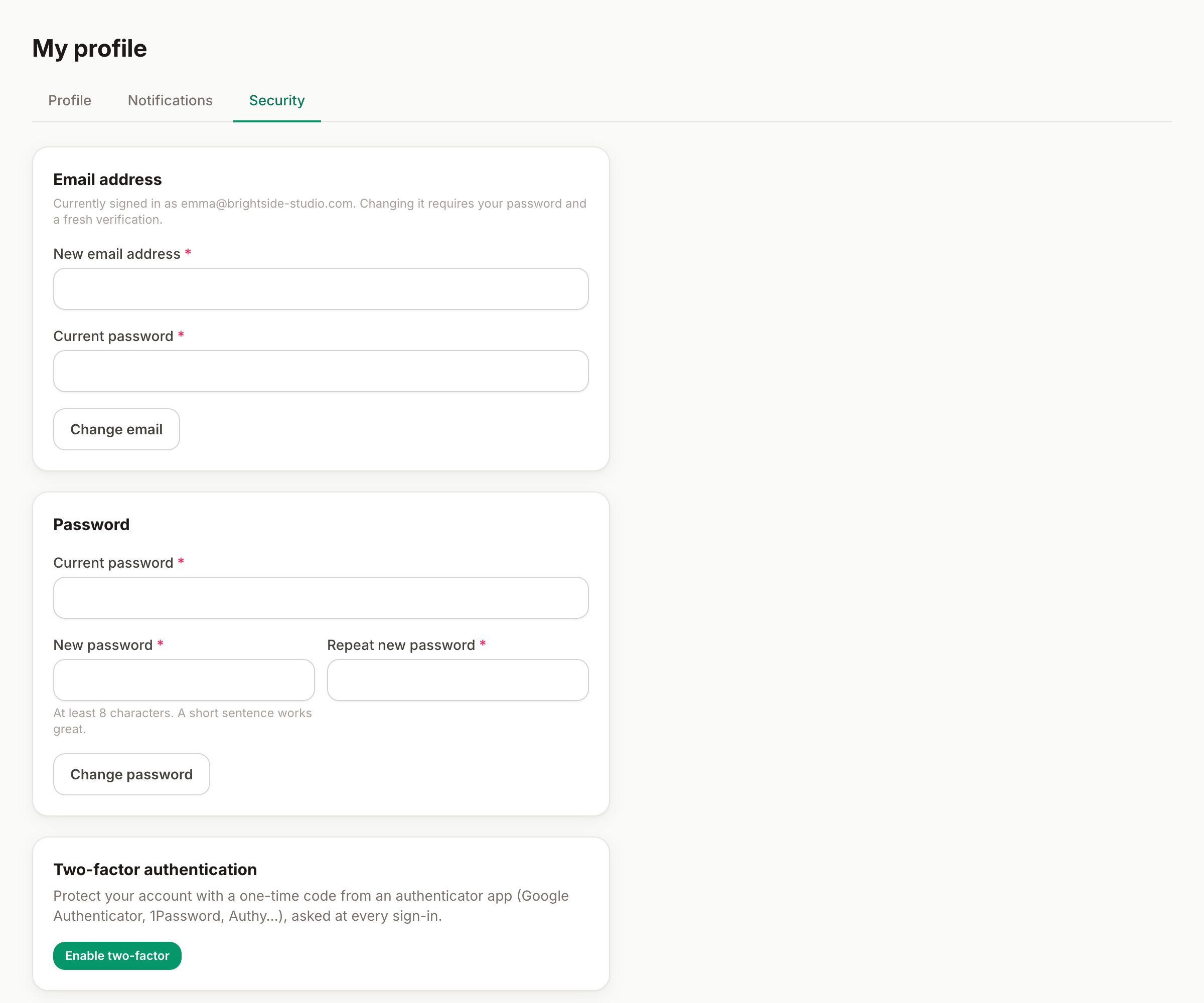
Change your email or password
- Email — enter the new address and your current password. Your sign-in and notifications move with it.
- Password — current password, then the new one twice (at least 8 characters). Prefer length over cleverness: a passphrase beats a puzzle.
Both ask for your current password on purpose: someone at your unlocked screen can't quietly take over the account.
Forgot your password?
From the login page, Forgot password sends a reset link to your email. The link is single-use and expires quickly; if it says it's no longer valid, just request a fresh one.
Signing in with Google or Microsoft
If your organization uses SSO, the Continue with Google/Microsoft buttons sign you in by matching your work email — no separate password to remember, and your password (if you set one) keeps working too. Two-factor, if enabled, applies to both routes.
Active sessions
The Sessions card lists every device currently signed in — browser, network and date, with your current one marked. Don't recognize one, or left yourself signed in on a shared computer? Sign out other sessions ends everything except where you are now.
Your sign-in history
Below the sessions, your personal sign-in log: when, from which browser and network, and how (password, Google, Microsoft, invitation). It's the same data your admins see org-wide — here you watch your own back.
If you suspect a compromise
- Change your password.
- Sign out other sessions.
- Turn on two-factor authentication if you hadn't.
- Skim the sign-in history and tell your admin if something wasn't you.