Protect your account with two-factor authentication
Two minutes with any authenticator app: scan the QR, confirm a code, and your account needs more than a password — SSO included.
Two-factor authentication (2FA) adds a second lock to your account: even with your password, nobody gets in without the six-digit code from your phone. In Bueggio HR it's the standard TOTP scheme — any authenticator app works — and setup takes two minutes.
Turn it on
- Go to My profile → Security and find the Two-factor authentication card.
- You'll need an authenticator app: Google Authenticator, Microsoft Authenticator, 1Password, Apple Passwords, Authy — any of them.
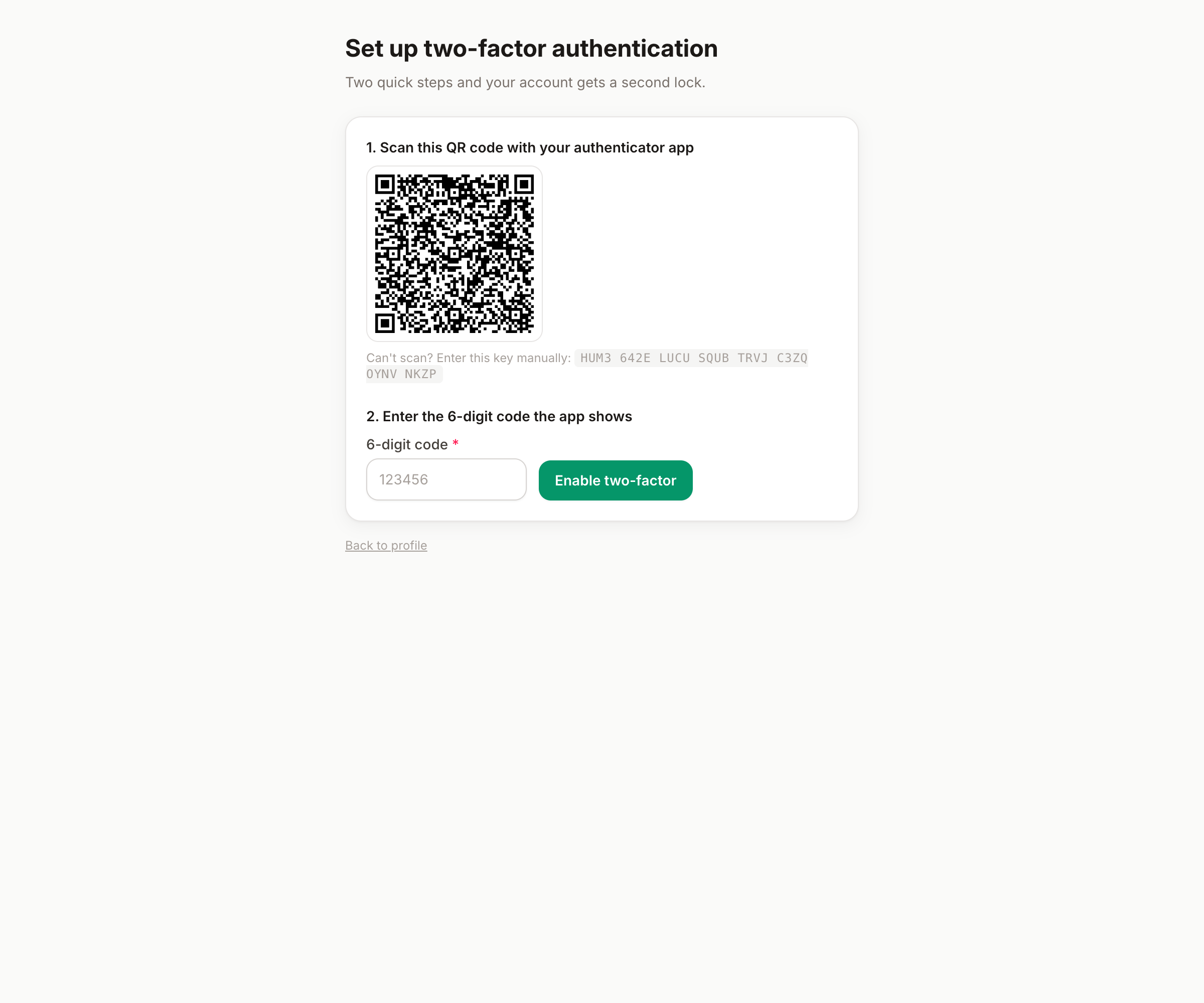
- Scan the QR code with the app (or type the secret shown next to it, grouped in blocks of four, if you can't scan).
- Enter the six-digit code the app shows, to prove the pairing worked. Done.
Signing in from then on
After your password — or after Google/Microsoft sign-in, 2FA covers SSO too — a second screen asks for the current code from your app. Codes rotate every 30 seconds and each one works once; that's the point.
Lost or new phone
- New phone, old one in hand — most authenticator apps transfer their accounts; do that before wiping the old device and nothing changes.
- Phone gone — ask an admin: in Settings → Team, your entry has a Reset two-factor action. At your next sign-in you'll enroll again with the new device. (Admins: that reset button is your lockout answer, documented in the org security guide.)
When 2FA is mandatory
Organizations can require 2FA for everyone. If yours does, the app walls you off until you enroll — the same two-minute setup, just not optional. You'll see it at your next sign-in.
Good to know
- You can turn 2FA off from the same card — unless your organization mandates it, in which case the option is simply not there.
- 2FA protects sign-ins; it doesn't log out existing sessions. Pair it with sign out other sessions if you're securing a compromised account (sessions guide).