Connect Claude and other AI assistants
Ask who's off, check balances and book leave from claude.ai, Claude Desktop or any MCP client — with every action attributed to you.
Bueggio HR speaks MCP (Model Context Protocol), the open standard AI assistants use to work with other tools. Connect Claude — on claude.ai, Claude Desktop or Claude Code — or any other MCP-compatible assistant, and you can ask things like "who's off next week?", "how many days do I have left?" or "book me Friday off" in plain language.
What the assistant can do
- Read — who's off and when, your leave balances, pending requests.
- Simulate — quote a booking before making it (how many days it would cost, who else is away).
- Act — book time off, and for approvers, approve or decline requests.
Everything the assistant does is in your name and limited by your role: an employee's assistant can't approve anything, and a booking made by an assistant enters the normal approval flow — a human still decides.
Connect Claude in two clicks
- In Claude (claude.ai or the desktop app), open Settings → Connectors and add a custom connector.
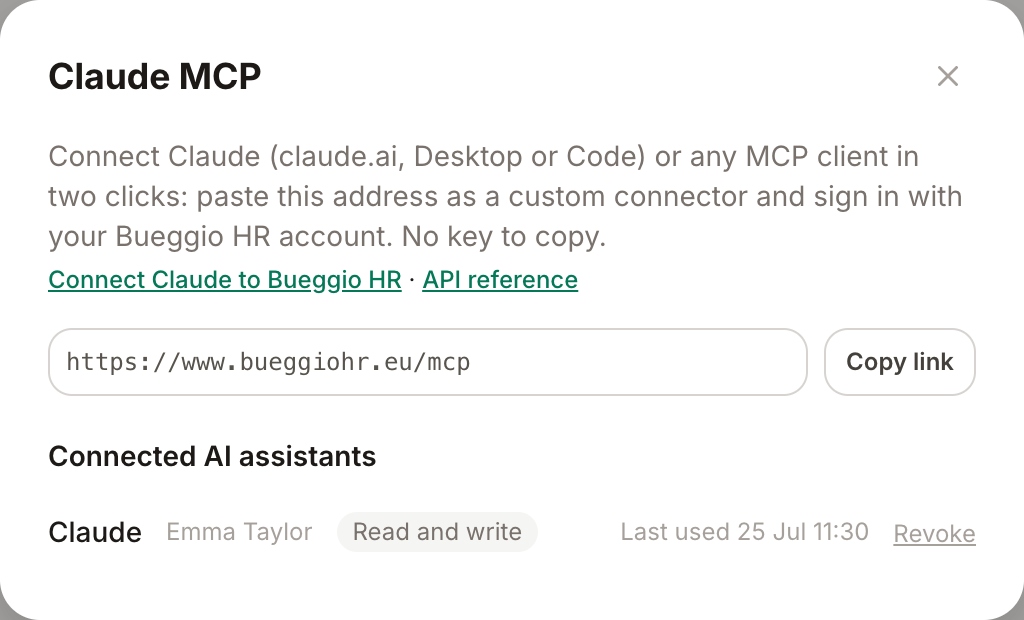
- Paste your MCP address:
https://www.bueggiohr.eu/mcp(you'll also find it, ready to copy, in Settings → Integrations → Claude MCP). - Claude sends you to Bueggio HR to sign in with your usual account, and a consent screen shows exactly what you're authorizing. Click Authorize.
That's it — no API keys, no configuration files. The full step-by-step with screenshots for claude.ai, Claude Desktop and Claude Code is on our Connect Claude page.
Other MCP clients
Any assistant that supports remote MCP servers with OAuth sign-in works the same way: point it at https://www.bueggiohr.eu/mcp and authenticate when prompted. Clients that don't do OAuth can connect with an organization API key instead.
Manage and revoke access
- Yourself — disconnect the assistant from its own settings (in Claude: Settings → Connectors → remove), or ask an admin.
- Admins — Settings → Integrations → Claude MCP lists every connected assistant in the organization, with the person it acts for and when it was last used. Revoke cuts its access immediately.
Security and privacy
- The connection uses OAuth 2.1: the assistant never sees your password, and Bueggio HR stores only hashed credentials.
- Every action is attributed to the real person behind the assistant — it shows up in request histories like any other action of yours.
- The assistant only reads what your role can see; nothing is shared with the AI provider beyond what you ask for.
Troubleshooting
- The connector won't authorize — start the connection again from the assistant's side; authorization links are single-use and short-lived.
- The assistant says it can't do something — it has your permissions, no more: employees can't approve, and read-only connections can't book.
- You lost track of a connection — admins can see and revoke every connected assistant in Settings → Integrations.