Approve and decline requests
Your first decisions: from the app, from the email in one click, or from Slack and Teams — with a required reason on every decline.
Approving in Bueggio HR is deliberately boring: you get notified, you look at one screen (or one email), you click once. This guide covers your first decisions and the habits that keep them quick.
Who approves what
You receive a request when you're the approver of the requester's department, or when you're an admin and the department has no approver (departmentless people always route to admins). How approvers are assigned: departments guide.
Decide from the app
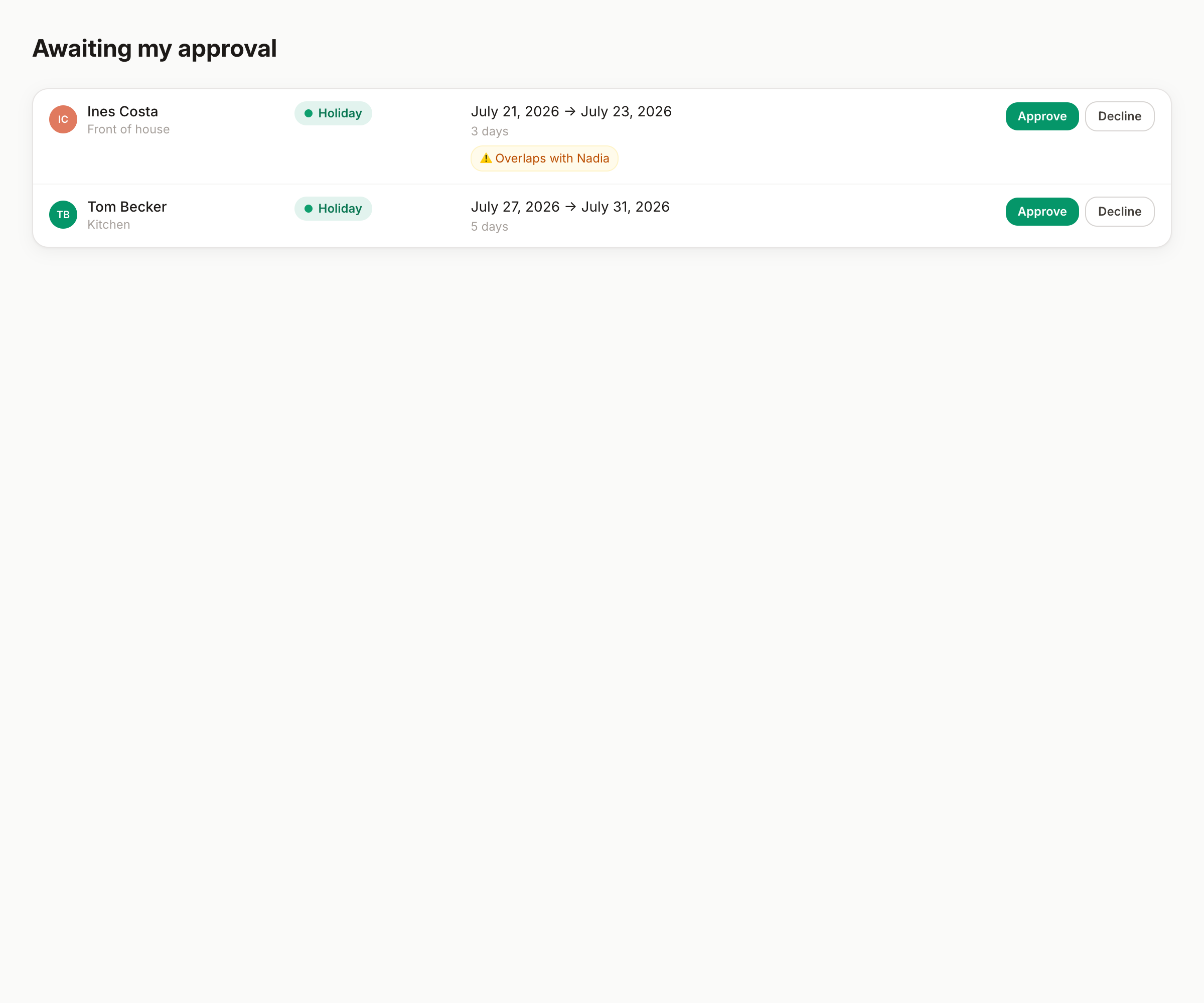
The Requests page lists everything awaiting your approval, with the person, type, dates — and an overlap flag when a same-department colleague is already off on those dates:
- Approve — one click. The requester is notified immediately, the wall chart updates, synced calendars follow.
- Decline — asks for a reason, always. It's sent to the requester and stored in the request's history; "no" with context keeps trust.
Open a request to see its timeline — every event, decision and note, in order.
Decide from the email — no login
Every notification email carries Approve and Decline buttons that work without signing in: they open a small confirmation page (approve is one button; decline asks the reason). The links are personal, signed and expire after 7 days. On your phone, in a queue, done.
Decide from Slack or Teams
If your organization has connected them, decisions come to you: interactive DMs in Slack, one-click cards in Teams. Same effect as the app, recorded in your name.
What to check before approving
- The wall chart for the period — who else is off? (Pending requests show hatched, so you see the whole picture.)
- The allowance impact shown on the request — over-allowance requests arrive flagged.
- Department absence caps do the arithmetic for you: if the request got through, there was room — pending requests reserve their slot at booking time.
Good to know
- Approvals can't be un-clicked, but an approved request can be cancelled (by the person or by you) — days return to the allowance.
- Booked something for the wrong person as an approver? You can book on behalf of your team from the same booking form.
- Want a morning overview instead of one email per request? Turn on the daily or weekly digest in Profile → Notifications.