Departments, approvers and absence limits
Group people, choose who approves their requests, cap how many can be away at once and keep followers informed by email.
Departments group your people on the wall chart and decide who approves whose requests. They also carry two quietly powerful settings: a cap on how many people can be away at once, and followers who stay informed without approving anything. Everything lives in Settings → Team, under Departments.
Create a department and add people
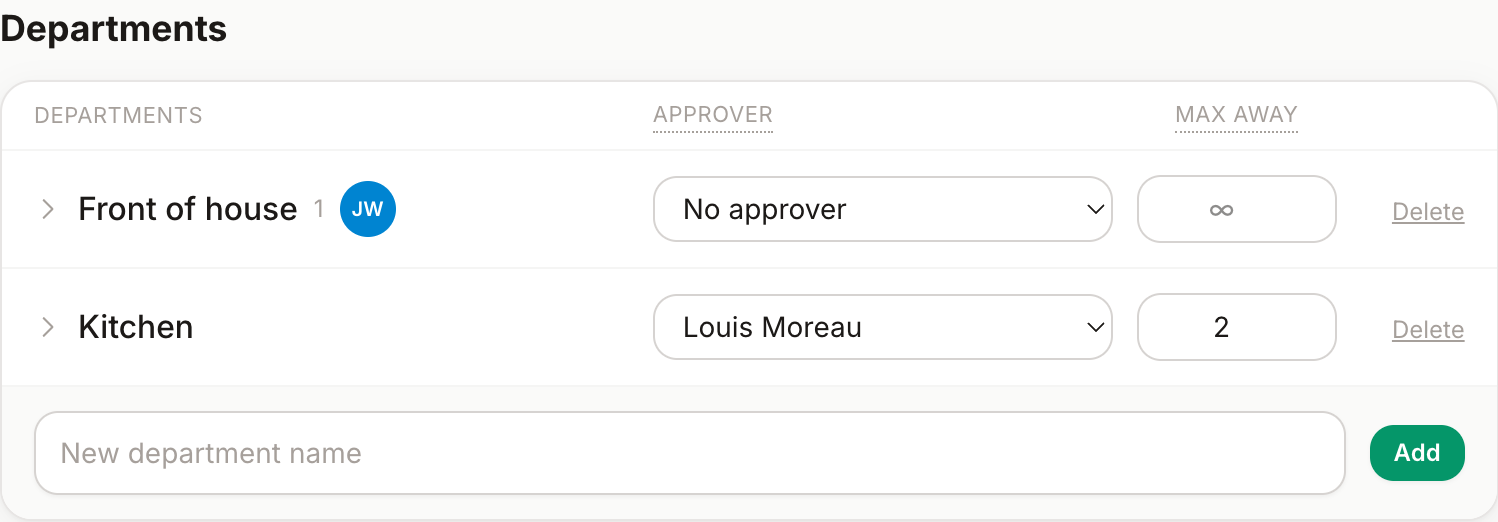
Type a name in the row at the bottom of the departments card and click Add. Expand a department to see its members; add or remove people inline. A person can belong to one department (set it on the person, or from the member panel).
The approver
Each department has an optional approver — a manager or admin who receives and decides that department's requests. The rule is simple:
- With an approver — requests from the department's members go to that person.
- Without one — all admins receive them.
Approvers get the notifications wherever they live: in-app bell, email (with one-click approve links), Slack, Teams.
Max people away at once
The max away number caps how many members of the department can be absent on the same day — the service keeps running even in July. Empty means no limit.
- Only leave types with "counts toward the absence limit" switched on occupy a slot — remote work or sickness typically don't (configure per type in Leave types).
- Pending requests occupy slots too: the check happens at booking time, so approving never over-books a day. If someone tries to book a full day, they're told the limit is reached.
Followers
Followers are people who get an email heads-up when a department absence is booked, approved or cancelled — without any approval rights. Think of the office manager who plans lunches, or a project lead across teams. They're never spammed with pending noise, never notified of their own bookings, and approvers aren't double-mailed.
Good to know
- Departments also power the wall chart's grouping and filters, per-department calendar feeds, Slack daily summaries and date locks.
- Deleting a department asks for confirmation; its members stay, just without a department (and their requests route to all admins).