Connect ChatGPT
Add Bueggio HR to ChatGPT as a custom MCP plugin: ask who's off, check balances and book leave, with every action attributed to you.
Bueggio HR works inside ChatGPT: add it once as a custom MCP plugin, sign in with your Bueggio HR account, and ask things like "who's off next week?", "how many days do I have left?", "who reports to Hannah?" or "book me Friday off" in plain language. You can name people as you would to a colleague: ChatGPT finds them by name or email.
What ChatGPT can do
- Read: who's off and when, balances (including ROL and RTT banks), leave history and the details of a request, pending requests with who else is away, public holidays and locked dates, and the org chart (managers and direct reports).
- Simulate: quote a booking before making it (how many days it would cost, who else is away).
- Act: book and cancel time off. Approvers can also approve or decline requests and lock dates for their departments.
- Manage (admins only): see everyone's balances and the monthly payroll export, invite people, update job titles, managers, departments and allowances, add closure days.
Everything ChatGPT does is in your name and limited by your role: it only sees the actions you're allowed to take, and a booking it makes enters the normal approval flow, so a human still decides. Assistants can never deactivate or erase people.
What you need
- ChatGPT on the web (chatgpt.com) with a plan that allows custom MCP servers: Plus, Pro, Business, Enterprise or Edu.
- On a Business, Enterprise or Edu workspace, custom MCP servers follow your workspace's policies: if the option is missing, ask your ChatGPT admin.
- A Bueggio HR account, any role. If your company requires two-factor authentication, enable it on your profile first.
Add Bueggio HR to ChatGPT
- Go to chatgpt.com/plugins, click + and choose Add custom MCP server.
- Name it Bueggio HR and add a short description (for example "Staff leave: who's off, balances, bookings and approvals"): ChatGPT reads it to know when to use the plugin.
- Under Connection, paste
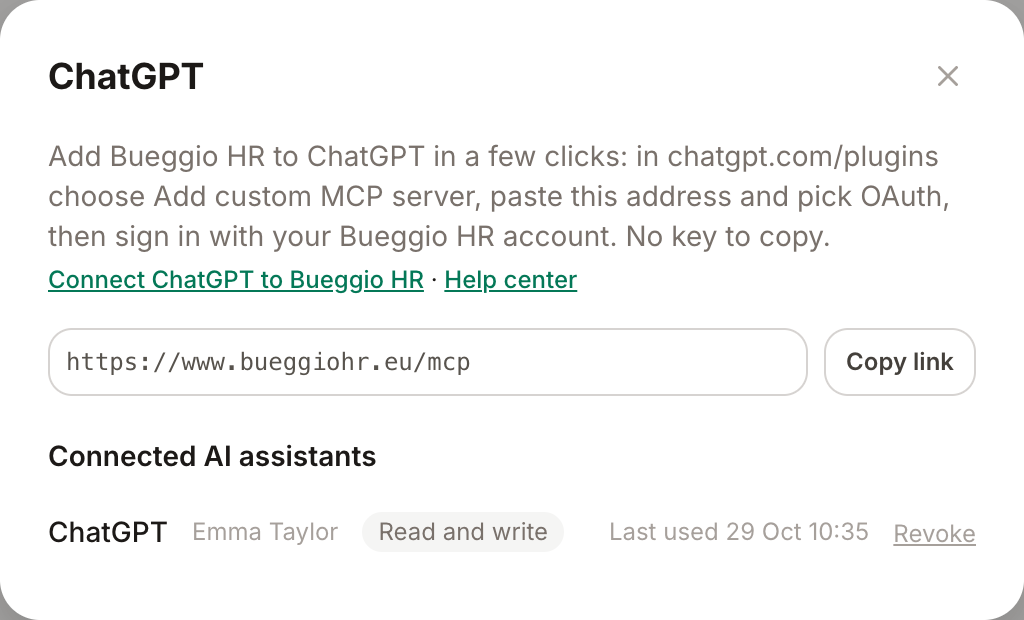
https://www.bueggiohr.eu/mcpas the Server URL (it's also ready to copy in Settings → Integrations → ChatGPT). - For Authentication, pick OAuth and leave the client fields empty: ChatGPT registers itself automatically.
- Tick I understand and want to continue under the risk warning, then click Create as a plugin.
- Install the plugin from your personal plugins, sign in to Bueggio HR when asked and click Authorize on the consent screen.
Then, in a new conversation, type @ and pick Bueggio HR. If the plugin doesn't appear, switch the ChatGPT homepage tab from Chat to Work. The full walkthrough, with an animated example, is on our Connect ChatGPT page.
Confirmations before writing
Every Bueggio HR tool is marked as reading or writing, and ChatGPT uses it: questions run straight away, while bookings, cancellations, approvals and date locks first show a confirmation with the exact details ChatGPT will send. You can let ChatGPT remember your approval for the rest of a conversation; a new conversation always asks again.
Manage and revoke access
- Yourself: disconnect or uninstall the plugin from ChatGPT's plugin settings, or ask an admin.
- Admins: Settings → Integrations → ChatGPT lists every ChatGPT connection in the organization, with the person it acts for and when it was last used. Revoke cuts its access immediately.
Security and privacy
- The connection uses OAuth 2.1 with PKCE: ChatGPT never sees your password, and Bueggio HR stores only hashed credentials.
- Every action is attributed to you and shows up in request histories like any other action of yours.
- What ChatGPT reads from Bueggio HR becomes part of your conversation with OpenAI, under your ChatGPT plan's data settings: ask only for what you need.
Troubleshooting
- No "Add custom MCP server" option: check your plan (Plus, Pro, Business, Enterprise or Edu, on the web) or ask your ChatGPT workspace admin to allow custom MCP servers.
- ChatGPT answers without using Bueggio HR: mention it with @Bueggio HR or say "use Bueggio HR".
- New features don't show up: open the plugin in ChatGPT Plugins and click Refresh, then start a new conversation.
- It says it can't do something: it has your permissions, no more. Employees can't approve, and read-only connections can't book.
Prefer Claude? It connects to the same address: see Connect Claude and other AI assistants.
Can't find what you're looking for?
Write to us: a human replies within 48 hours.
Contact us