Approve requests from Microsoft Teams
Post each leave request as a card in a Teams channel, with one-click Approve and Decline — one webhook URL, no bot to install.
The Microsoft Teams integration posts each new leave request as a card in a Teams channel of your choice, with Approve and Decline buttons that work in one click — no Bueggio HR login needed. It's deliberately the simplest possible setup: one webhook URL, pasted once.
What you get
- Approval cards in a channel — every request that needs a decision appears as a card with the person, the leave type and the dates.
- One-click decisions — the card's buttons use the same secure signed links as email approvals: they open a small confirmation page, no sign-in required.
- Per-approver language — a card is posted for each approver, written in that approver's language.
Set it up
You'll create an Incoming Webhook in Teams, then paste its URL into Bueggio HR. You need to be an admin in Bueggio HR and able to manage connectors on the Teams channel.
- In Teams, open the channel where approvals should land — ideally a private channel for approvers only (everyone in the channel can see the cards).
- Open the channel's options → Connectors (or Manage channel → Edit connectors, depending on your Teams version), find Incoming Webhook and add it.
- Give it a name (say, "Bueggio HR") and copy the webhook URL Teams generates.
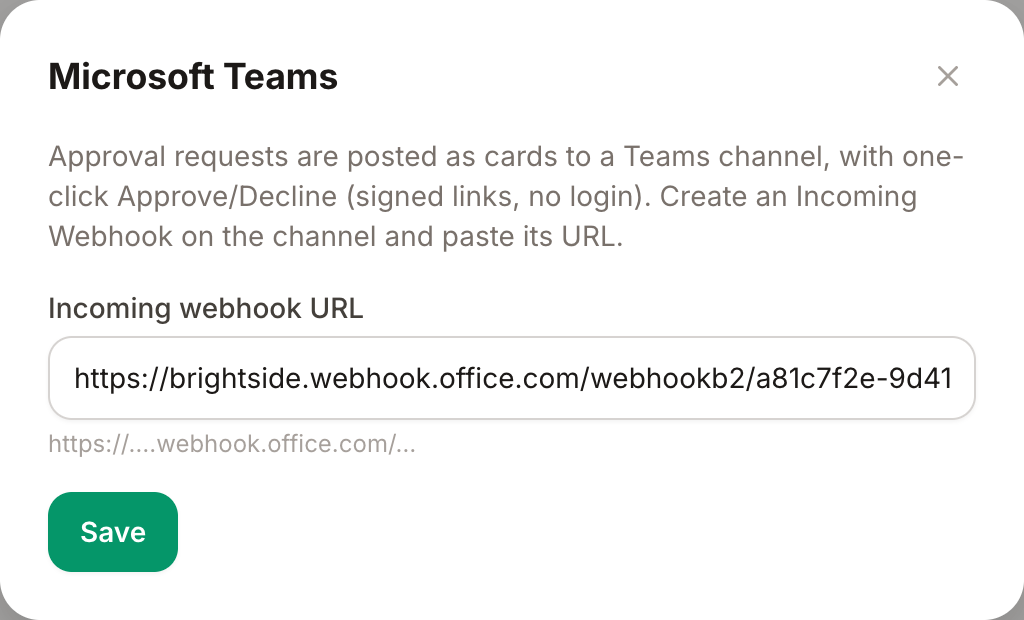
- In Bueggio HR, go to Settings → Integrations → Microsoft Teams, paste the URL and save.
How decisions work
When someone books leave that needs approval, the card appears in the channel:
- Approve — opens a one-button confirmation page in the browser, then it's done. The requester is notified through their usual channels.
- Decline — opens a page that asks for a reason (required, sent to the requester and kept in the request's history).
The links are personal to each approver and signed, so the decision is recorded in that approver's name — exactly as if it were made in the app. For safety they expire after 7 days; older requests can still be decided from the app or the notification email.
Stop posting to Teams
Clear the webhook URL field in Settings → Integrations → Microsoft Teams and save. You can also delete the Incoming Webhook on the Teams side — either one stops the cards.
Troubleshooting
- No cards arrive — check that the webhook URL is still valid: if the connector was removed in Teams, the old URL silently stops working. Create a new Incoming Webhook and paste the fresh URL.
- A button says the link expired — the request is older than 7 days. Decide it from the app (Requests) or from the approval email instead.
- The wrong people see the cards — cards go to one channel for the whole organization. Move the webhook to a private approvers' channel.
Can't find what you're looking for?
Write to us: a human replies within 48 hours.
Contact us