Set up and use the Slack integration
Install Bueggio HR in your Slack workspace: approvals in DMs, the /bueggio command and daily who's-off summaries in your channels.
The Slack integration brings Bueggio HR into the tool your team already has open all day. Once connected, approvers decide on requests without leaving Slack, anyone can book time off or check their balance with a slash command, and the channels you choose get a short "who's off today" summary every morning.
What you get
-
A booking form inside Slack — type
/bueggioand a form opens with date pickers, your organization's leave types, half days and a note. No dates to type by hand. - A Home tab — open the Bueggio HR app in Slack's sidebar to see your balance and upcoming time off, with a button to request more.
- Interactive approvals — approvers receive a direct message for each new request, with an Approve button and a Decline button that asks for a reason.
- Daily absence summaries — a morning post in the channels you pick, listing who is away today. Silent when nobody is off.
- Personal notifications — updates about your own requests as Slack DMs, if you keep them enabled in your profile.
- Automatic out-of-office status — opt in, and while you're away your Slack status shows 🌴 with your return date.
Install the Slack app
You need to be an admin in Bueggio HR, and your Slack workspace must allow you to install apps (or your Slack admin can approve the installation).
- Go to Settings → Integrations and find the Slack card.
- Click Add to Slack.
- Slack shows what the app can do — pick the workspace and click Allow.
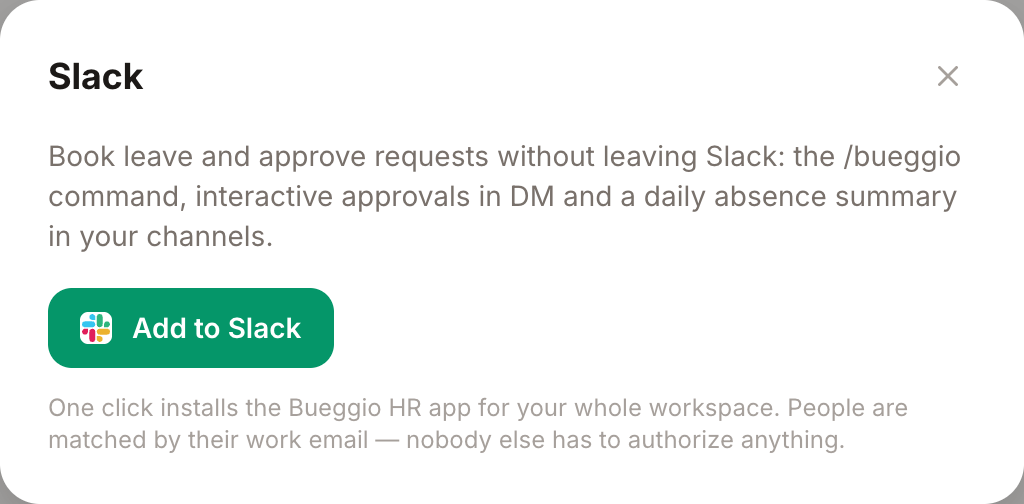
That's it: you land back in Bueggio HR with the workspace name confirmed on the Slack card. There are no tokens to copy and nothing to configure on Slack's side.
How teammates get connected
Right after the installation, Bueggio HR automatically matches your people to their Slack accounts by email address: anyone whose Bueggio HR email matches their Slack email is linked without doing anything.
Anyone missed by the first pass is matched lazily: opening the app's Home tab links them on the spot, and the first time they use /bueggio Slack replies with a private link to connect their account manually. The link is valid for 30 minutes — clicking it and signing in to Bueggio HR completes the match. If the two accounts use genuinely different addresses (say, a personal one in Slack), only the manual link can pair them.
Approve and decline from Slack
When someone requests time off, everyone who can approve it (the department's approver, or the admins) gets a Slack DM with the request details:
- Approve — one click, done. The requester is notified right away.
- Decline — opens a small form asking for a reason. The reason is required, is sent to the requester, and is kept in the request's history.
Decisions made in Slack are exactly the same as decisions made in the app: they show up on the wall chart, in the request timeline, and in every other notification channel.
Request time off from Slack
Type /bueggio on its own in any Slack conversation and a booking form opens: pick the first and last day from a calendar, choose the leave type, say whether it starts in the morning or afternoon and ends at lunchtime or end of day (same half-day selectors as the web form), and add an optional note. Submit, and the request enters the normal approval flow — you get a confirmation DM right away.
Leave types that require an attachment (a medical certificate, for example) can't be booked from Slack — the form points you to Bueggio HR for those.
Prefer the keyboard? The command shortcuts still work, and replies are only visible to you:
-
/bueggio book 2026-08-03 2026-08-07— requests time off from the first date to the second, using your organization's default leave type. Leave out the second date for a single day, or add a leave type name at the end. -
/bueggio balance— your remaining allowance for the year, including any extra balances your country rules provide (for example ROL hours in Italy or RTT days in France).
Bookings made from Slack follow the normal rules: they wait for approval unless the leave type is set to auto-approve, and date locks and department absence caps still apply.
The Home tab
Open Bueggio HR from the Apps section of Slack's sidebar and select the Home tab. It shows your remaining allowance (with any country extras), your upcoming time off — pending requests marked as such — and two buttons: one opens the booking form, the other takes you to the web app. The tab refreshes every time you open it.
Daily summaries in your channels
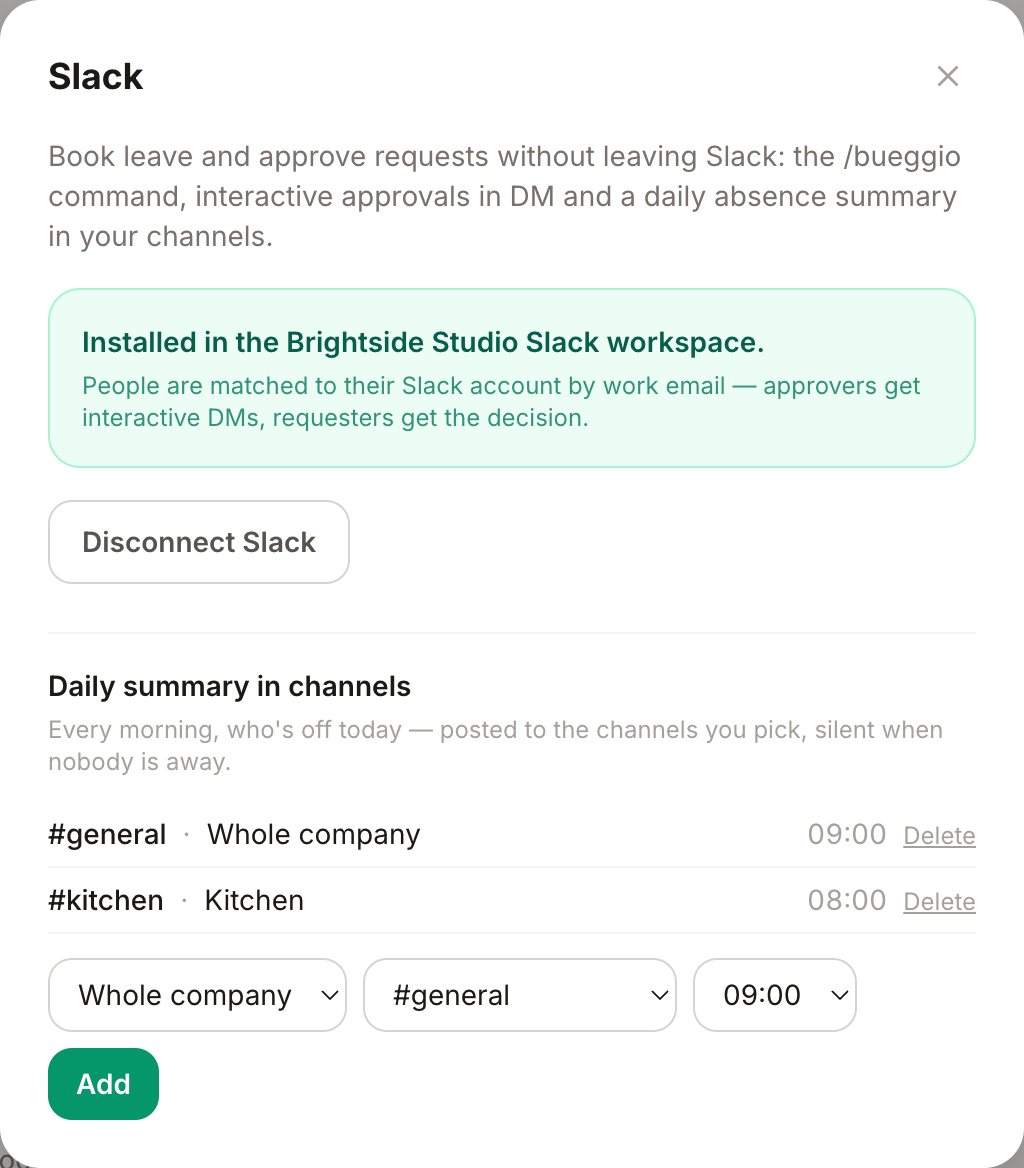
Admins can subscribe channels to a daily "who's off today" post from Settings → Integrations, under Daily summary in channels:
- Pick the scope — the whole company or a single department.
- Pick the channel.
- Pick the hour (in your organization's timezone), then click Add.
The summary only posts when at least one person is away — no noise on quiet days. You can subscribe as many channels as you like (for example the whole company in #general and each team in its own channel) and remove a subscription at any time.
Choose what Slack tells you
Each person controls their own notifications from My profile → Notifications: Slack messages about your requests can be turned on or off there, independently from email.
Automatic out-of-office status
You can let Bueggio HR manage your own Slack status while you're away: during an approved absence your profile shows 🌴 with your return date, so anyone about to message you sees you're out before they hit send. The status appears when the absence starts, disappears by itself on your first working day back (weekends and public holidays are skipped), and is removed right away if the absence is cancelled.
- Go to My profile and find the Slack status card, just below the calendar connections (it appears once your organization's workspace is connected).
- Click Connect — Slack asks your permission to update your status, and nothing else.
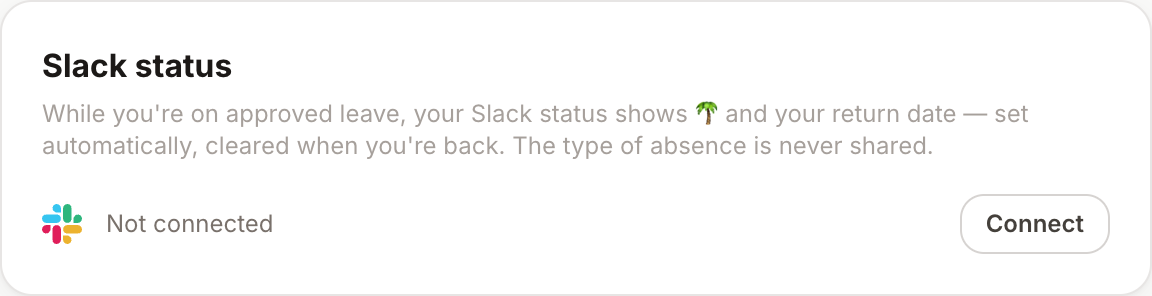
Two things worth knowing: the status never says why you're away — it's always a generic "out of office", whatever the leave type — and each person connects for themselves, nobody can switch it on for you. Disconnect any time from the same card: Bueggio HR's access is revoked on the spot and a status it had set is cleared.
Disconnect
Admins can disconnect the workspace at any time from Settings → Integrations → Disconnect Slack. This revokes the app's access on Slack's side and unlinks everyone's Slack accounts. Nothing else changes: requests, balances and history in Bueggio HR are untouched, and you can reinstall later. Removing the app from within Slack has the same effect — Bueggio HR notices and cleans up on its own.
Troubleshooting
-
Someone isn't getting DMs — their Slack email probably doesn't match their Bueggio HR email. Ask them to run
/bueggio balanceonce and follow the connection link Slack sends back. -
/bueggioanswers "connect your account" — same cause, same fix: follow the private link in the reply (it's valid for 30 minutes). - The channel list won't load when adding a daily summary — close and reopen the Integrations page to retry. If it persists, disconnect and reinstall the app.
- The daily summary never posts — check that at least one person in the chosen scope is actually away that day: the summary is deliberately silent when nobody is off.
Can't find what you're looking for?
Write to us: a human replies within 48 hours.
Contact us