Block bookings with date locks
Lock critical periods — company-wide or per department — with a reason on the wall chart. New bookings are refused; existing ones are honoured.
For managers
Updated July 25, 2026
Date locks block new leave bookings on a date range — for inventory week, the Christmas rush, a product launch. The locked days are shaded on the wall chart with your reason on them, so nobody wastes time requesting what can't be approved.
Lock a period
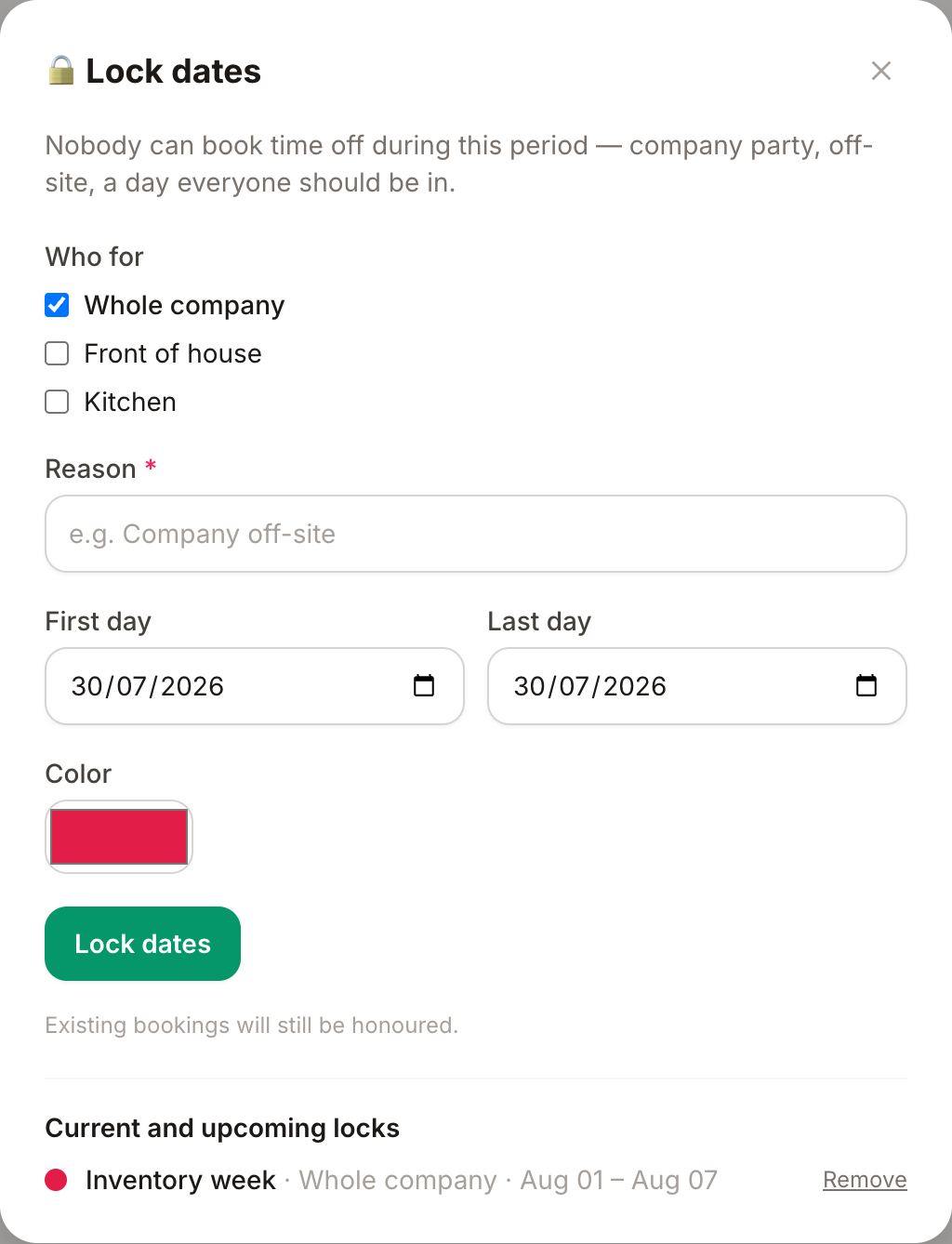
- Open the wall chart and click the padlock button next to the month navigation.
- Choose who it's for: the whole company or a single department.
- Give it a reason — it appears on the chart and in the message people see when they try to book ("Inventory week", "Store opening").
- Pick the dates and, if you like, a color for the shading.
Who can lock what
The authority mirrors approvals:
- Admins — any department, or the whole company.
- Managers — the departments they approve.
How the block behaves
- It stops new bookings that overlap the range — the booking form refuses them with the lock's reason.
- Existing bookings are honoured: leave approved (or requested) before the lock isn't cancelled or flagged. A lock is a "from now on" rule, not a retroactive one — check the chart before locking if you need the period genuinely clear.
- Everyone in scope sees the shading on the wall chart; other departments aren't affected by a department lock.
Remove a lock
Open the padlock modal again: existing locks are listed with their dates and reason — delete the one you no longer need. Bookings blocked earlier aren't created retroactively; people just book normally again.
Can't find what you're looking for?
Write to us: a human replies within 48 hours.
Contact us