Book time off
Pick your days on the calendar, watch the live count of days used and remaining, and follow your request to the decision.
For everyone
Updated July 30, 2026
Booking time off is the thing you'll do most in Bueggio HR, so it's built to take seconds: pick the days, see live what they cost, send. Here's the whole journey — from the button to the decision.
Book a request
- Click Book time off — it's everywhere: the top bar on desktop, the round button on mobile, the wall chart.
- Pick the leave type (Holiday, Remote work…). The colors match the wall chart.
- Pick your dates on the calendar — click the first day and the last (or the same day twice for a single day). The Starts / Ends selectors handle half days: start in the afternoon, come back at lunchtime, or both.
- Add a note if useful. Some types ask for more: an attachment (a medical certificate, say) or a certificate number — the field appears when needed.
- Send it.
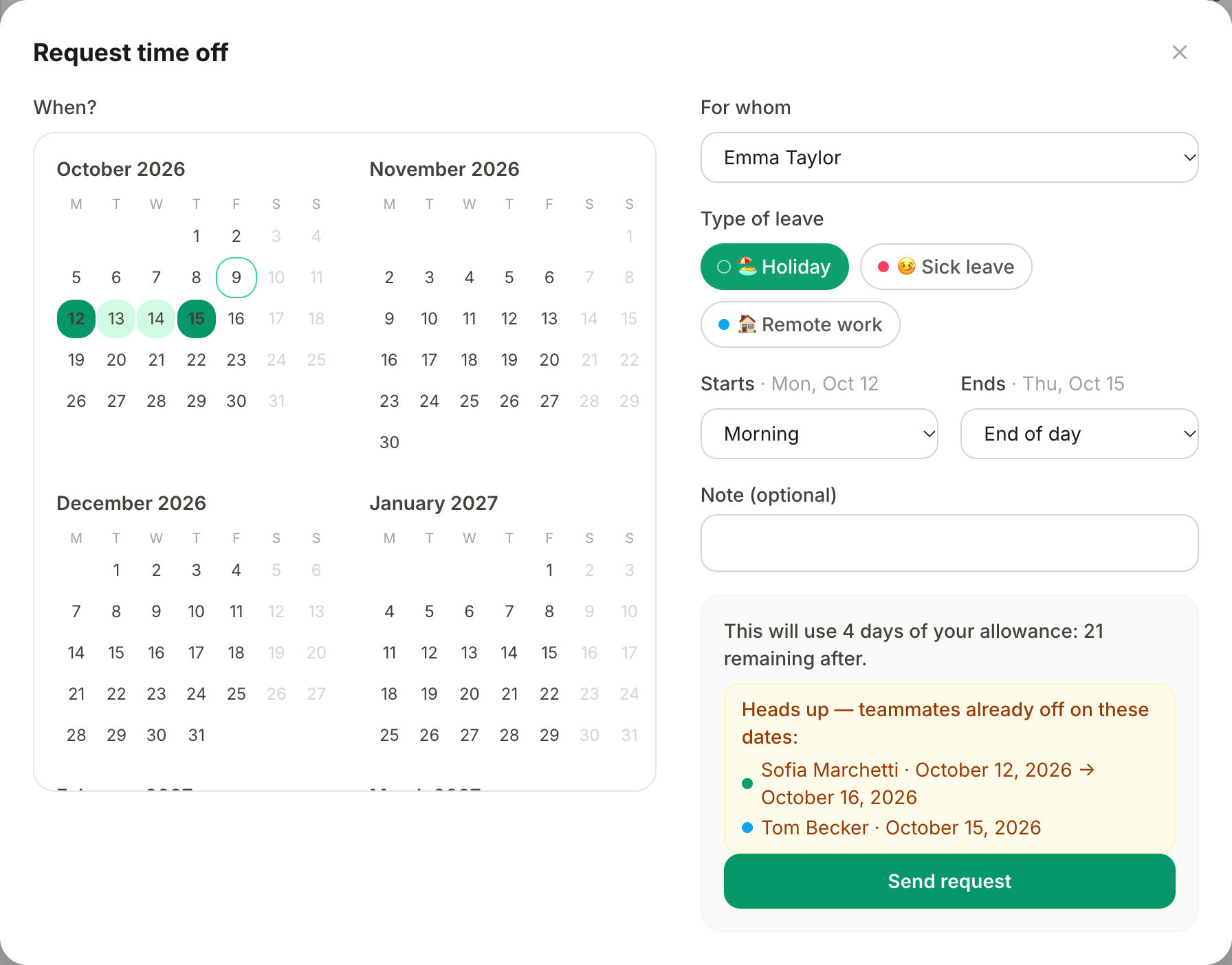
The live math
As you pick days, the form does the counting for you:
- "This will use X days — Y remaining after" — weekends and public holidays are already skipped; what you see is what will be deducted. Types that don't touch your allowance say so instead.
- Teammate conflicts — a heads-up lists colleagues already off on those dates, before you send.
- Over your allowance? — the form warns you and asks to confirm; the request can still go through, flagged for the approver.
- Locked dates or a full department? — the form refuses with the reason (a date lock, or the team's absence cap is reached).
What happens after you send
- Most types wait for a decision: the request shows as pending (hatched on the wall chart) and your approver is notified. Auto-approved types (often Remote work) are confirmed instantly.
- You're notified the moment it's decided — in-app bell, email, and push or Slack if you've enabled them. A declined request always comes with the reason.
- Track everything in My requests: status, history, and the timeline of each request.
Change or cancel
Open the request (from My requests or the wall chart) and cancel it — the days return to your allowance and any synced calendar event disappears. Need different dates? Cancel and rebook; it keeps the history honest.
Good to know
- Your allowance card (home and profile menu) always shows total, used, pending and remaining — including extra balances if your country has them (ROL, RTT…).
- Booking from Slack (
/bueggio book) or an AI assistant follows exactly the same rules. - An optional out-of-office reminder (Profile → Notifications) emails you two days before an approved absence starts — set the auto-responder, brief the team.
Can't find what you're looking for?
Write to us: a human replies within 48 hours.
Contact us