Migrate from Timetastic
Upload Timetastic's Full Export: people, departments, approvers, every approved absence and balances matched to the day, then invitations for everyone.
Moving from Timetastic doesn't mean starting from a blank page. Timetastic can export everything about your account in one spreadsheet; Bueggio HR reads it and rebuilds your team, its leave history and its balances in a few minutes. This guide is the whole procedure, including what is deliberately left behind.
Before you start
- You need to be an admin of your Bueggio HR organization.
- Check Settings → General: the month your leave year starts must be the same as in Timetastic, otherwise balances can't be compared and the import refuses to run. Set the carry-over the way Timetastic had it too.
- If your organization is French (or has French employees), decide about jours de fractionnement and jours ouvrables in General settings before importing: Timetastic never applied either, so leaving them on makes balances drift next year. The preview warns you.
1. Export from Timetastic
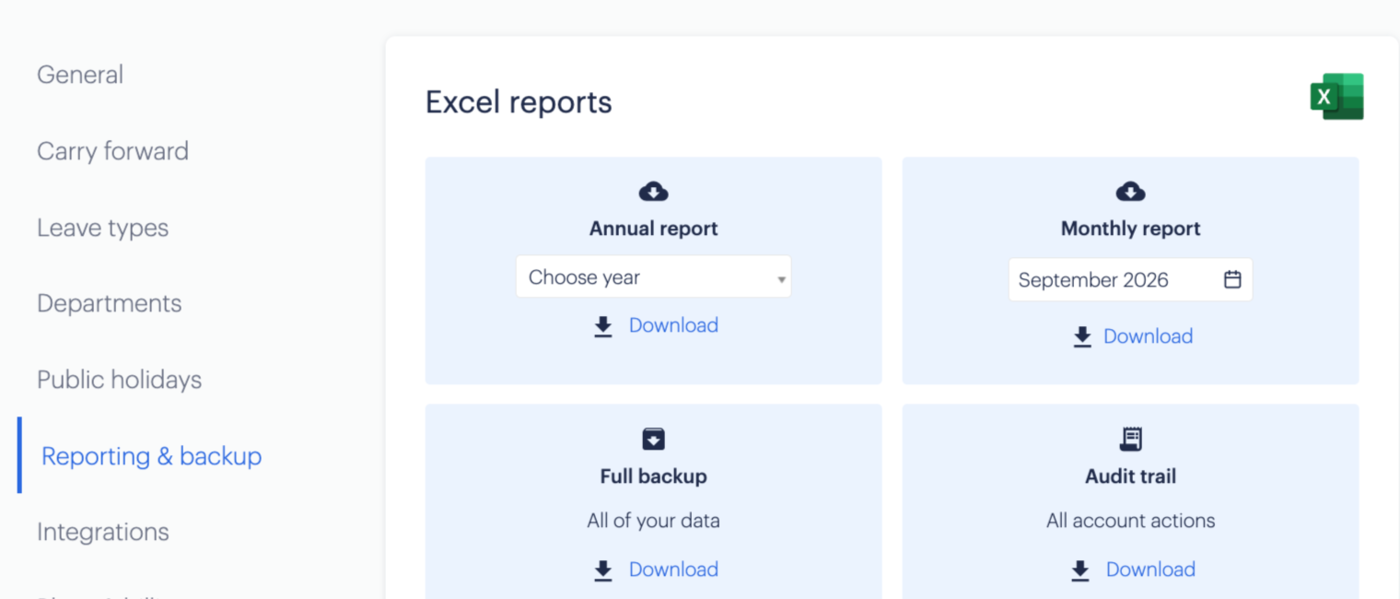
In Timetastic, open Settings → Reporting & backup and download the Full backup ("All of your data"). It downloads one workbook named Timetastic_FullExport_<date>.xlsx with sheets for your organisation, departments, users, leave, time in lieu and work schedules. That single file is all Bueggio HR needs: no API key, no other report.
Export and import on the same day: the balances in the file are only true for the absences in that same file.
2. Upload and preview
In Settings → Team, the invite card has a Migrate from Timetastic button. Upload the workbook. Nothing is written yet: you land on a preview that shows exactly what will happen.
- Checks at the top. Red ones block the import (leave year mismatch, allowances counted in hours); amber ones are things worth knowing (people without a public-holiday calendar we support, bookings made in hours, attachments and birthdays that won't come over, archived people that are skipped).
- Leave types. For each Timetastic type you choose: create it in Bueggio HR (whether it deducts from the allowance is inferred from the export), map it onto a type you already have, or don't import it. Types booked mostly on weekends are flagged as worked shifts and skipped by default; change that if they really are absences.
- How far back. Everything in the export, or only the current leave year. Past absences keep reports and the wall chart truthful and never change today's balances; we recommend keeping them.
- People, one row each, with department, role, approver, next year's allowance and the remaining days Timetastic shows today. Someone already in Bueggio HR (matched by email) is updated, never duplicated.
3. Confirm
Click Import and invite everyone. The import runs in the background; the page refreshes on its own and shows the report when it's done. Everyone new receives their invitation email at the end; you can also copy invitation links one by one from the People table afterwards.
What comes over, and how
| In Timetastic | In Bueggio HR |
|---|---|
| Users, roles, start dates, payroll IDs | People with the same role (admins stay admins, anyone who approves becomes a manager), start date and payroll reference |
| Departments and their managers | Departments with that manager as approver |
| A person's own approver | The personal approver override in their entry, when it differs from the department's |
| Public holiday location | The person's holiday country (national calendar); countries we don't cover are left without holidays, pick one later |
| Work schedule | The personal working week, only when it differs from the company's |
| Approved bookings, with AM/PM halves and notes | Approved requests with the same dates, half days and notes; the day count is taken from Timetastic, never recomputed |
| Bookings in hours | A half day (up to 4 hours) or a full day |
| Cancelled and declined bookings | Left behind |
| Allowance, carry-over, time in lieu | Next year's allowance becomes the base; this year's remaining balance is matched exactly with an adjustment (see below) |
| Birthdays, MFA flags | Never imported: Bueggio HR doesn't store them |
| Attachments (medical certificates) | Not imported; keep the Timetastic export for them |
Why balances match to the day
Timetastic stores each year's allowance already pro-rated and hand-adjusted; Bueggio HR computes it from a base, a start date and its own rules. Rather than hope both formulas agree, the import compares, for every person, what Timetastic showed as remaining with what Bueggio HR computes after the absences are in, and records the difference as an allowance adjustment with the reason "Balance migrated from Timetastic". The report lists all three numbers per person. The adjustment is visible in the person's entry, applies to this leave year only, and can be removed if you disagree with it.
Imported requests
Each imported absence carries an Imported from Timetastic line in its history, in the name of the admin who ran the import, and the original approver as decider when we could match the name. Nobody is notified about imported absences, nothing is pushed to calendars or Slack at import time; future ones appear on the wall chart and count against balances like any other approved leave.
Running it twice
Safe. People are matched by email, absences by their Timetastic booking id, and the migration adjustment is replaced, not added. A second run with a newer export only adds what's new.
Privacy
The workbook is stored on EU servers only while the import runs and is deleted automatically the moment it finishes or you abandon it. What it contains is the same data Bueggio HR holds for your team anyway; what we don't store (birthdays, certificates) is never read into the product. Details in our privacy policy.
Can't find what you're looking for?
Write to us: a human replies within 48 hours.
Contact us