Generate and share your org chart
Four layouts, five looks, your logo, generated faces for people without a photo: download it as PNG, JPEG or SVG or share it with a public link.
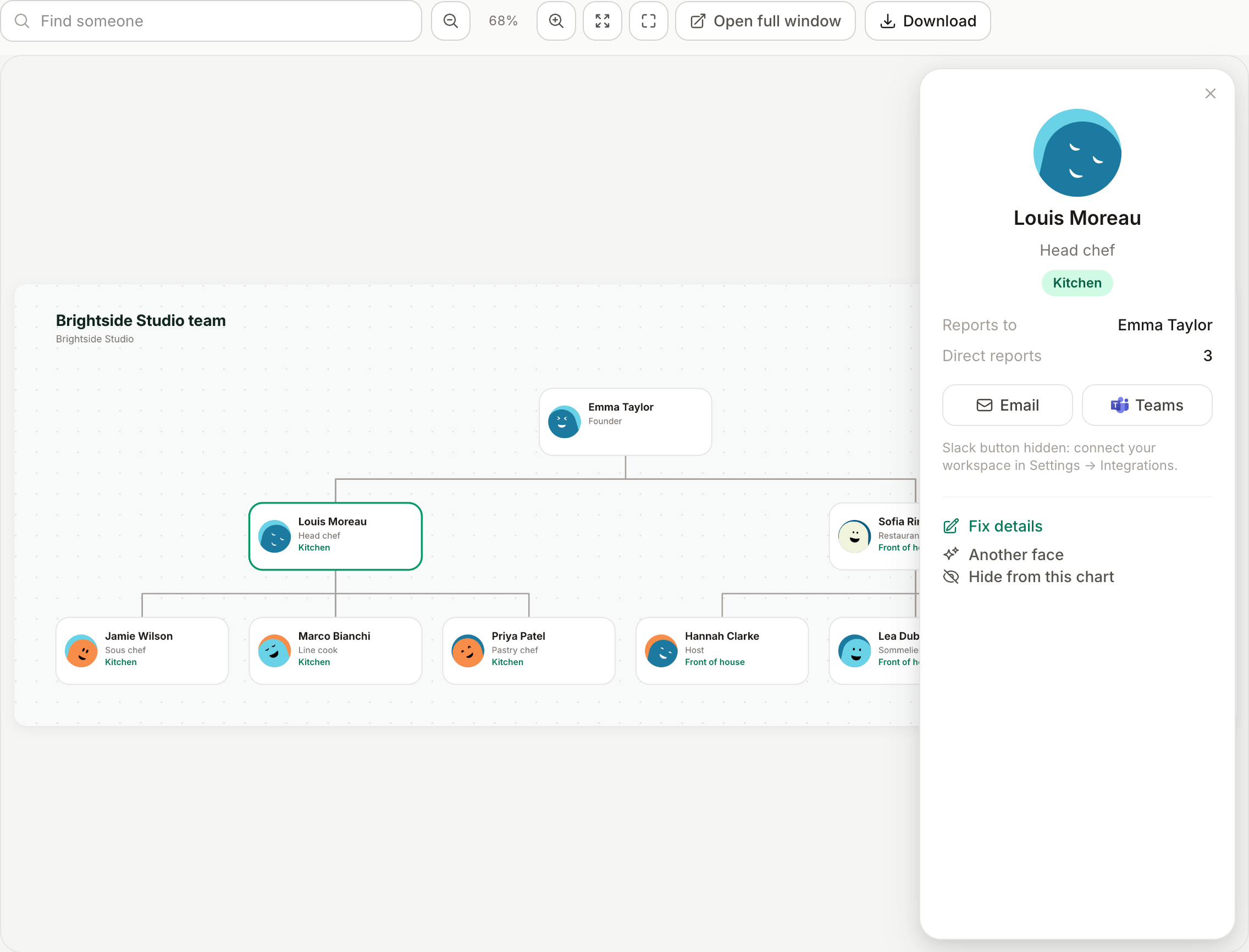
The org chart turns the people you already manage in Bueggio HR into a company chart: who reports to whom, with photos, job titles, departments and contact buttons. Admins generate it in a few seconds from Org chart in the sidebar; everyone in the organization can open it, search it and click any card. Download it as PNG, JPEG or SVG, or share it with a public link.
Generate one
Click Generate org chart and choose:
- Who's on the chart: the whole company, one department, or everyone from a given person down.
- Layout: Hierarchy (the classic tree, top-down or left to right), By department (one panel per department with its approver on top), Flat (leadership row, then everyone in a grid) or Circular (the top at the centre, one ring per level).
- Levels: show every level, or fold deeper teams into a +N badge on their manager's card.
- On each card: job title, department, email address. People who haven't accepted their invitation yet are left out unless you tick them in; the date in the sheet header can be switched off too.
- Look: over twenty looks in the product's own language: ten brand looks (Paper, Notebook, Mint, Emerald, Forest, Ink, Stone, Slate, Terracotta, Clay) fourteen alpine illustrations from our website (summer, winter and a night scene), or your own image uploaded right here (JPG, PNG or WebP, under a light veil so the cards stay readable), all drawn for any export size, and your company logo, uploaded right here or in Settings → General.
- Faces: by default profile photos win and only people without one get a face; switch to Faces for everyone for one consistent illustrated style across the whole chart, photos included. People without one get a face from the open-source DiceBear collection (Thumbs, Lorelei, Notionists, Open Peeps, Shapes, all CC0) or an initials disc, drawn inside Bueggio HR from the vendored style definitions: no name, seed or photo ever leaves the app.
- Contact buttons: which channels appear in the person panel, in the app and separately on the public link.
You can generate as many charts as you like (one per department, one for the intranet, one for a slide) and change any setting later from Settings on the chart.
Where the reporting lines come from
Each person has a Reports to field (Settings → Team → person → Profile tab), independent from who approves their leave. The first time you generate a chart, Bueggio HR drafts it for everyone from their effective approver: the person's own approver, else the department's. From there you refine it person by person; nobody can be their own manager and loops are refused.
Fix details from the chart
Click a card to open the person panel. Admins see three extra actions:
- Fix details: job title, phone number (which switches on Call and WhatsApp), reporting line and a photo. These write to the person's profile, so every chart and the team page stay in step. A photo uploaded here becomes their profile photo (they can replace it any time from their own profile).
- Another face: re-roll the generated face of someone without a photo, on this chart only.
- Hide from this chart: leave someone out of this chart without touching their account. Hidden people are listed under the chart with a one-click way back.
Navigate
Drag to pan, scroll or pinch to zoom, double-click to zoom in on a spot; the buttons zoom, fit to screen and go full screen. Open full window puts the sheet alone in a new tab, handy on a meeting-room screen. On the keyboard: + and - zoom, 0 fits, Esc closes the person panel.
Download
Download offers PNG and JPEG at twice the sheet resolution (rendered right in your browser from the chart's own SVG, with fonts and photos embedded) and the SVG itself for designers and print.
Public link
Admins can create a public link under the chart title. Anyone holding the link sees the interactive chart, with names, photos and the contact buttons you allowed for the public version (email only, by default; phone and WhatsApp stay off unless you switch them on). The page is not indexed by search engines, the token in the URL is the only credential, and disabling the link or generating a new one stops the old one at once. Deleting the chart does too.
Good to know
- Every employee can open the charts from the sidebar: a new hire sees who's who on day one. Deactivated and anonymized people never appear, and erasure also clears their reporting lines.
- Charts always draw from live data: change a department or a title and the chart follows on its next open.
- Slack buttons open a direct message in your connected workspace; Teams buttons open a chat by work email; WhatsApp and Call use the phone number from the person's HR record.
Can't find what you're looking for?
Write to us: a human replies within 48 hours.
Contact us